
Reference
Frames settings
Settings is where you choose how Frames exports, how new projects start, and how Quick Frame works.
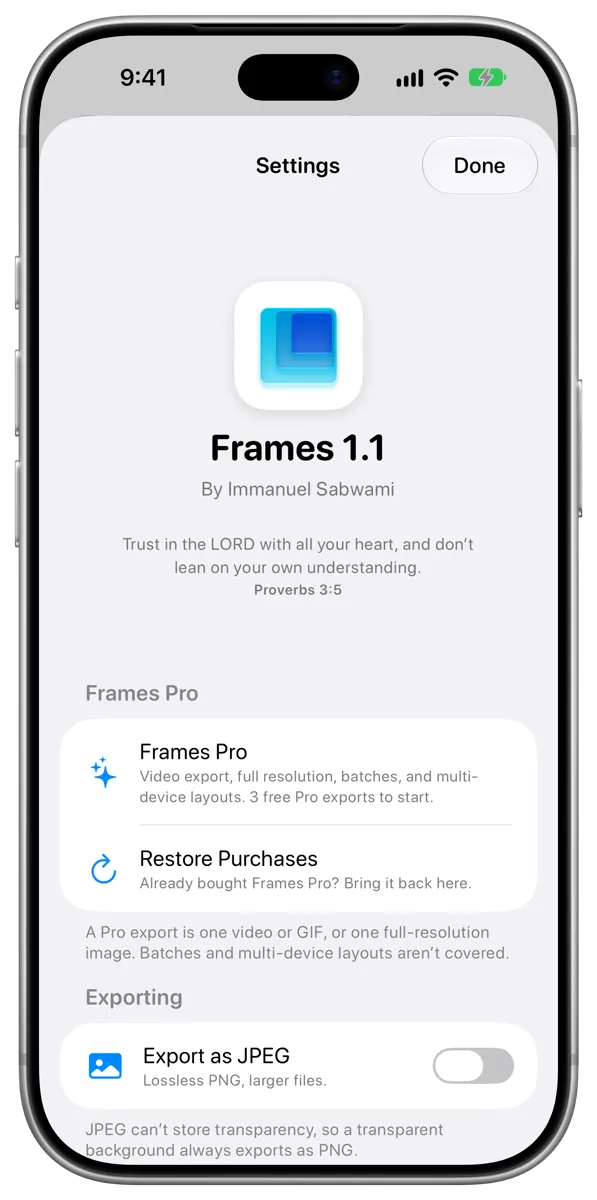
#Open Settings
- On iPhone or iPad: Tap the gear button at the top of your library.
- On Mac: Choose Frames > Settings, or press Command-Comma.
#Frames Pro
| Setting | What it does |
|---|---|
| Frames Pro | Shows what Frames Pro includes and how many free Pro exports you have left, and lets you buy it. |
| Restore Purchases | Unlocks Frames Pro if your Apple Account has already bought it. |
See Buy or restore Frames Pro.
#Exporting
| Setting | What it does |
|---|---|
| Export as JPEG | Exports much smaller JPEG files instead of lossless PNG. Transparent backgrounds are always PNG. |
See PNG, JPEG and transparency.
#New Projects
| Setting | What it does |
|---|---|
| Start From | The look new projects open with: Last Used, Nothing, or a preset. |
| Name New Projects | When on, Frames asks for a name before opening a new project. When off, it opens straight away, named for you. |
| Name Imported Groups (Frames Pro) | When on, Frames asks for a name when you import a batch into a new Group. When off, it uses the folder name or the date. |
See Choose how new projects start.
#Quick Frame
| Setting | What it does |
|---|---|
| Style | The look Quick Frame applies: Last Used, or a preset. |
| Screenshot Source (Mac) | Where Quick Frame looks for your newest screenshot: a folder, or your photo library. |
| Quick Frame Folder (Mac) | The folder to look in, usually your Desktop. |
| Ask Where to Save (Mac) | When on, you choose a location each time. When off, framed screenshots go to the destination set in Save To. |
| Save To (Mac) | Your photo library, or a folder you choose. |
| Save Without a Project | When on, Quick Frame only saves the framed screenshot, without keeping it as a project. |
See Use Quick Frame.
#Presets
Choose Manage Presets to create, edit and delete presets. See Manage presets.
#About
| Setting | What it does |
|---|---|
| Getting Started | Shows the welcome walkthrough again. |
| Changelog | Shows what’s new in each version. |
| Privacy Policy | How your data is handled. |
| Terms of Service | What you agree to by using Frames. |
| Contact | Opens an email to support. |
Below the About section, Frames shows when your library last synced with iCloud.